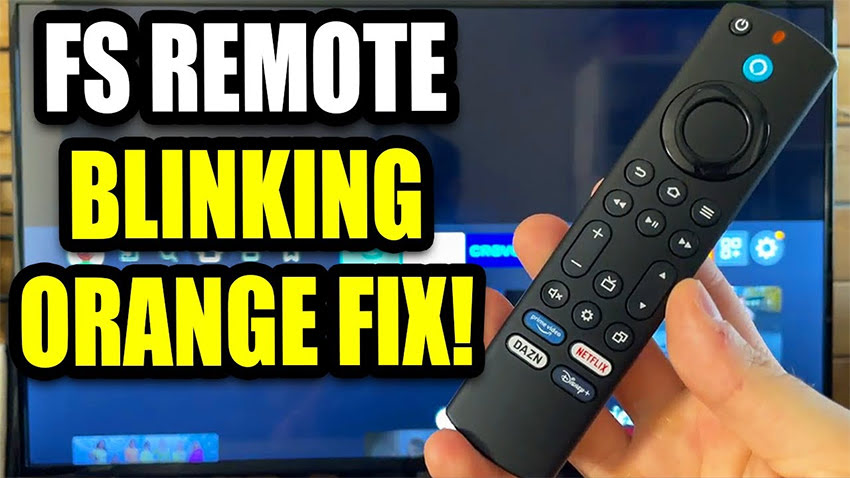
Fix FireStick Remote Blinking Orange: In this guide, I’ll walk you through the FireStick remote blinking orange light issue and explain how to resolve it.
What Is the FireStick Remote Blinking Orange Issue?
The Amazon FireStick remote is designed for easy use and quick pairing. However, like any tech device, it can occasionally run into problems—one of the most common being the continuous blinking orange light. According to Amazon, the blinking orange light means the remote is in Discovery Mode, which indicates it’s trying to pair with a FireStick device. If your FireStick is powered on and the remote still keeps flashing orange, it means the remote is unable to establish a connection. This guide will help you troubleshoot and fix this pairing issue effectively.
Privacy Alert! Your data is exposed to the websites you visit! The information above can be used to track you, target you for ads, and monitor what you do online. We recommend ExpressVPN — the #1 VPN out of over 350 providers we've tested. It has military-grade encryption and privacy features that will ensure your digital security, plus — it's currently offering 48% off. Your IP Address: Loading...
 Your Location: Loading...
 Your Internet Provider: Loading...
How to Fix FireStick Remote Blinking Orange – The Official Method
Amazon recommends the following steps to resolve the blinking orange light issue on your FireStick remote:
- Power off your FireStick, unplug it from the TV, and wait for about 60 seconds.
- Remove the batteries from your remote, then wait a few moments before reinserting them.
- Plug your FireStick back into the TV and power it on.
- Press and hold the Home button on your remote for at least 10 seconds.
- The remote should now pair with your FireStick.
If your remote is still blinking orange after following these steps, continue with the additional troubleshooting methods outlined below.
How to Fix a FireStick Remote Blinking Orange Light
If the official pairing method doesn’t stop the blinking orange light on your FireStick remote, try these alternative solutions:
Replace the Batteries
Low battery power is a common cause of connectivity issues. Weak batteries can’t support a stable Bluetooth connection with your FireStick. Amazon recommends using high-quality alkaline batteries for the best results.
Shorten the Distance
The FireStick remote works best within 10 feet (about 3 meters) of the device. If you’re too far away—or if obstacles are blocking the signal—it may fail to connect. Try moving closer and ensure there’s a clear path between the remote and the FireStick.
Eliminate Interference
Since the FireStick remote connects via Bluetooth (not infrared), nearby devices operating on similar frequencies—like Wi-Fi routers, microwaves, or other electronics—can cause signal interference. Check if other Bluetooth devices are having connection issues in the same area. If so, remove or relocate the interfering devices.
Power Cycle the FireStick
Unplug your FireStick from its power source and wait around 60 seconds. Then plug it back in. This simple reboot has worked for many users to stop the blinking orange light and restore remote functionality.
Avoid Conflicts with Multiple FireSticks
If you have more than one FireStick device nearby, your remote might try connecting to the wrong one. Power off all other Fire TVs in the area, then manually pair your remote with the correct device using the steps from the official method.
Reset the FireStick Remote
If none of the above solutions work, perform a factory reset of your remote:
- Unplug your FireStick and wait at least 60 seconds.
- Press and hold the Left, Menu, and Back buttons on your remote at the same time for 15 seconds.
- Release the buttons and wait 5 more seconds.
- Remove the batteries from the remote.
- Plug your FireStick back in and wait for at least 1 minute.
- Reinsert the batteries into the remote.
- Press and hold the Home button for 10 seconds to complete the pairing.
These troubleshooting steps should help resolve the blinking orange light and get your FireStick remote working again.
Best VPNS For Streaming Safely
1. ExpressVPN — Best VPN With the Fastest Speeds for Smooth Streaming

Best Feature
The fastest speeds we tested, ensuring you can stream, browse, game, and torrent without interruptions
Server Network
3,000 servers in 105 countries give you fast worldwide connections
Simultaneous Device Connections
Up to 8, so you can protect your compatible devices under one subscription
Works With
Netflix, Disney+, Amazon Prime Video, BBC iPlayer, (HBO) Max, Hulu, Vudu, DAZN, and more
2. NordVPN — Best VPN With the Fastest Speeds for Smooth Streaming
Best Feature
High security features and fast speeds for a reliable connection
Server Network
5,400 servers in 60 countries for improved accessibility and connection speeds
Simultaneous Device Connections
Up to 6 devices, suitable for protecting multiple devices simultaneously
Works With
Netflix, Disney+, Amazon Prime Video, BBC iPlayer, (HBO) Max, Hulu, Vudu, DAZN, and more








Orange Light Still Blinking: What Should You Do Next?
If none of the troubleshooting steps resolved the blinking orange light issue, it’s likely that your FireStick remote has a deeper hardware or pairing issue that may require professional assistance. Here are your next options:
Use Your Smartphone as a Remote
Download the Amazon Fire TV app from the Google Play Store or Apple App Store. Make sure your phone and FireStick are connected to the same Wi-Fi network. Launch the app, select your Fire TV from the list, and enter the on-screen code displayed on your TV. You can now control your FireStick using your smartphone as a virtual remote.
Order a Replacement Remote
If your remote is faulty, consider purchasing a new FireStick remote from Amazon or an authorized retailer. Replacement remotes are typically affordable and easy to pair with your device.
Contact Amazon Support
If you’d rather not troubleshoot further on your own, reach out to Amazon Customer Support. Their team can guide you through advanced diagnostics or help process a replacement if your device is under warranty.
Best VPN deals this week:

Frequently Asked Questions
What does it mean when my FireStick remote is blinking orange?
The blinking orange light indicates that your FireStick remote is in discovery mode and it is trying to pair with a Fire TV device. It usually happens when the remote loses connection or is being set up for the first time.
How do I stop the FireStick remote from blinking orange?
The first thing you can try is re-pairing the remote by holding the Home button for 10 seconds. If that doesn’t work, restart your FireStick and check the batteries.
Can Wi-Fi or network issues cause the FireStick remote to blink orange?
Yes. If your Wi-Fi is unstable or disconnected it will affect the pairing process, especially if you’re using a Fire TV Cube or Alexa voice remotes that rely on a network connection.
How do I perform a factory reset on my FireStick without a working remote?
To factory reset your FireStick use the Fire TV app on your smartphone as a temporary remote. Once connected, go to Settings > My Fire TV > Reset to Factory Defaults.
Is there a way to fix the remote blinking issue without buying a new one?
In most cases, yes. The issue of remote blinking orange usually resolves by re-pairing the remote, changing batteries, or using the app, without needing a replacement.
How do I know if my FireStick remote is damaged or just unpaired?
If the remote won’t pair after multiple attempts and with fresh batteries, it could be physically damaged. Test it with another Fire TV device or try a different remote to confirm.
Wrapping Up
I hope this guide helped you resolve the FireStick remote blinking orange light issue. If you ever encounter the problem again, feel free to revisit this guide for quick troubleshooting.
Best VPNs for Streaming — Final Score:
Rank
Provider
Overall Score
Best Deal

9.8
★★★★★
save 84%
VISIT WEBSITE >
9.6
★★★★★
save 83%
VISIT WEBSITE >

9.4
★★★★★
save 84%
VISIT WEBSITE >